



Accessing Account Settings:
-
Click on the "Settings" icon (gear icon) located in the top right corner of the screen.
-
The "Settings" pop-up window will appear.
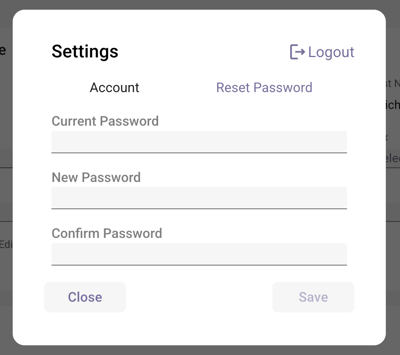
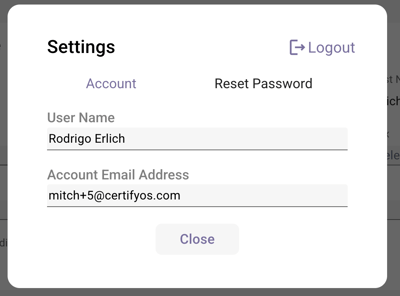
Account Settings Pop-up Window:
-
Title: The window is labeled "Settings."
-
Tabs: The window contains two tabs:
-
Account: Displays the user's account information.
-
Reset Password: Allows the user to change their account password.
-
Account Tab:
-
User Name: Displays the user's full name. (e.g., "Rodrigo Erlich")
-
Account Email Address: Displays the user's registered email address. (e.g., "mitch+[email address removed]")
Reset Password Tab:
-
Current Password: A text input field where the user enters their current password.
-
New Password: A text input field where the user enters their desired new password.
-
Confirm Password: A text input field where the user re-enters their new password to confirm it.
-
Save Button: A button labeled "Save" to apply the password change.
-
Close Button: A button labeled "Close" to exit the settings window without saving changes.
General Pop-up Elements (Present on Both Tabs):
-
Logout Button: A button labeled "Logout" in the top right corner of the window, allowing the user to log out of the portal.
-
Close Button: A button labeled "Close" at the bottom of the window, allowing the user to exit the settings without saving changes.
Functionality:
-
Account Tab: Provides a read-only view of the user's account information.
-
Reset Password Tab: Enables the user to change their account password by entering their current password, a new password, and confirming the new password. The "Save" button applies the changes, while the "Close" button discards them.
-
Logout: The "Logout" button logs the user out of the portal.
-
Close: The "Close" button closes the Account Settings pop-up window without saving any changes (on either tab).
-